

Composer, Config and attachments
The composer is where a chat is configured and fed. This page covers what you type into it, what you attach, and the one command surface behind / and Config.
- Workspace skills — every chat agent gets
.withSkills(), so it finds theSKILL.mdskills in its workspace (.agents/skills,.claude/skills,.<agentId>/skills, plus any extra folders and, only when turned on,~/.agents/skills) the same way a run does, and can load one itself withactivate-skill. Without a workspace the server’s launch folder is searched. The chat lists exactly those skills: a 3 skills chip in the quick bar, and/skillor/rows with each description and the folder it came from./skill <name>uses a skill for your next message only;/skills <name>pins it for every turn of the chat. You can also name a skill anywhere in a message, for examplesummarize this repo /codebase-health-sweep: a skill name the chat recognizes is highlighted as you type, and on send it is used for that message and left out of the text the agent receives (/skill <name>mid-message does the same,/skills <name>mid-message pins it). Typing/after a space opens the skill list at the cursor; Tab or Enter completes it. Paths such as/usr/bin, links,/wordsthat are not skills, and anything inside backticks stay as typed; write\/nameto send a skill name literally. Picking a skill from the menu or the skills chip puts its/nameat the cursor and never replaces what you wrote; prompts from the prompt library also go in at the cursor. Pins are skill names, so they keep working when you change the workspace. Under each finished reply a Skills row shows which skills the run had loaded and why: pinned, matched the task (the framework’s relevance pick) or loaded by the agent, with the version and a short hash of the skill body on hover, plus how many more were available. The run view shows the same row. A one-message skill is passed to that turn only; the chat keeps its agent. - Documents —
/docs add <path|url>accepts file paths and http(s) URLs; a source that fails to load emits aDocumentIngestFailedevent, shown as a failures banner in the chat UI instead of being silently skipped. Fetched URL documents are cached per session, so re-adding the same URL does not refetch it. - Composer and chips — the composer is one panel: the quick-bar chips on top, the message box, and a hint row with the prompt library and send. The goal bar (when a goal exists) docks above it. You can keep typing while a reply runs: Enter queues the next message (shown as Queued), it is sent when the reply finishes, and Clear or Escape drops it. If the reply stops, errors or its run fails, the queued message stays with Send now instead of going out. While a reply runs the send button is stop when the input is empty and queue when it has text. Starter chips,
/help,/docs addand Edit put text in the composer; a draft that would be replaced is set aside behind a Restore toast. Restore swaps: the text it replaces is set aside in turn, with its own Restore.
The quick bar and Config popover
Section titled “The quick bar and Config popover”The composer has one command surface. Typing / and pressing the Config button open the same list, anchored to the composer. Every setting appears there next to its slash alias (/model, /tools, /agent, /approvals, …) and its current value, so you can learn the command while you click. A command with options opens in place under a Back row. Esc goes back one level, then closes the list. /agent has an On/Off panel.
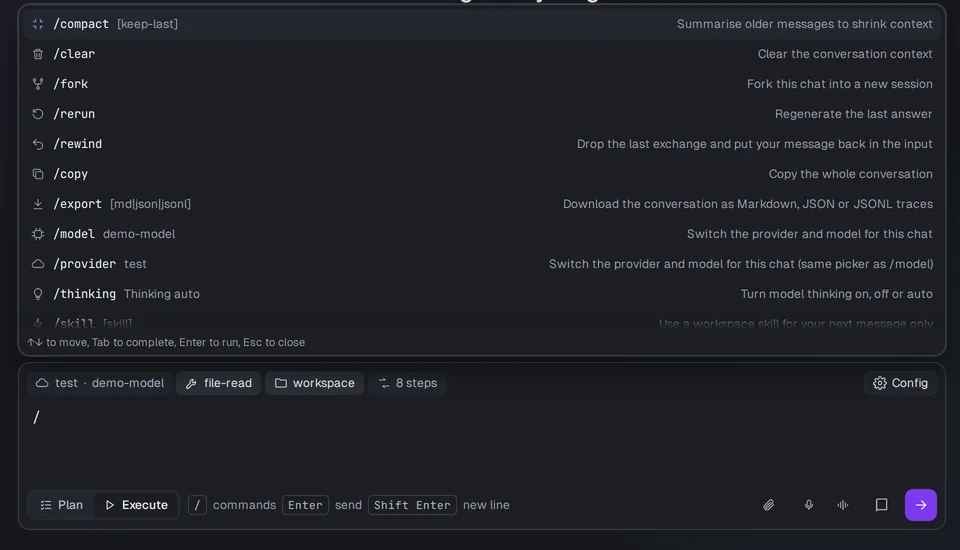
The row above the input shows the model and only the settings you have set: a thinking choice, a strategy, a step cap (once you pick one, the chip stays even if it is the default 16), tools, the shell, a workspace, pinned skills, documents, agent control. At most four chips show; the Config button (with +N for changed settings that did not fit) opens the same command list as typing /, anchored to the composer. The list holds the chat’s commands (such as compact, clear, fork and rewind) and its settings (model, provider, thinking, strategy, skills, agent control, tools, shell, MCP servers, tool disclosure, approvals, workspace, documents, steps), each setting with its slash alias and current value. A setting opens the same picker as its slash command, under a Back row; Back or Escape returns to the list, and once more closes (a click outside closes at once). Click a chip or row, or type the slash command, to pick a new value; the change is saved to the session and the next turn uses it. This also works while a reply runs: the change is saved straight away (not queued as a message), the running turn keeps the settings it started with, and a toast says the change applies to the next turn.
Tool disclosure is how the permitted tools are shown to the model: all (every tool’s full schema), index (a list of names; schemas load when a tool is used) or discover (only through discover-tools). Unset, the framework picks by model tier. The Config popover and the builder’s Tools section both state what is in force (Disclosure: index (3 tools picked), a name index; schemas load on use) with a “What is tool disclosure?” explainer, and a closed Tools section shows a Disclosure badge when a mode is set.
/mcp turns a saved MCP server on or off for this chat (its tools move with it). The Tools chip counts them: with web-search and two servers on it reads web-search +5, and its tooltip lists umami: 3 tools (stats, events, pages) per server. A server whose tools are not known yet is connected to once; the tooltip says listing tools… or why it could not connect. /mcp add <command or URL> saves a new one, lists its tools and turns it on: /mcp add https://mcp.context7.com/mcp, /mcp add npx -y @modelcontextprotocol/server-filesystem /tmp, or /mcp add docs https://host/mcp to name it. If the tools cannot be listed the server stays saved but is not turned on, and the toast says why. Lab → Tools → Servers has the same one-line add as Add server → Quick line (and Add an MCP server in the command palette goes there); headers and environment variables need Add server → Form, and a stored value can be replaced later in the server’s Credentials tab. A server switched off in Lab shows as Disabled in the chat’s Tools panel and is never started.
/btw <question> asks a side question about the run while it works, or about the last reply when nothing is running. A separate tool-less call on the chat’s own provider and model answers from a snapshot (the task, the tool calls so far with their results, the text drafted so far; credential-shaped values are redacted before it leaves the browser). It shows as a collapsible aside in the thread, marked as not part of the chat: it is never added to the history, never sent to the running turn, and the call reads and writes no memory. Its tokens are not added to the chat’s totals.
| Chip | Command | Sets |
|---|---|---|
| Strategy | /strategy |
Reasoning strategy (ReAct, plan-execute, …). |
| Tools | /tools |
Toolsets, single tools and MCP server tools. Picking any tool turns tools on for the chat. The git toolset (git · gh via shell) gives the agent a shell limited to those programs, not the full host shell; the builder’s Tools picks offer it too. While it is picked, the shell-execute checkbox stays checked, so the panel matches what the agent gets; clicking it switches between git · gh only and the full host shell. Chats and agents saved with the removed gh-cli or git-cli tools open with the git toolset; a saved gws-cli or workspace pick is dropped (enable the terminal and allow gws instead). Show tools: all / index / discover / tier default sets .withTools({ disclosure }): how the permitted tools are shown to the model, never which are permitted. The run view shows the resolved mode and the layer that decided it (tools: index · withTools). |
| Shell | /terminal |
shell-execute: off, on this machine, or in a Docker sandbox (no host files). |
| Workspace | /workspace |
Directory the file tools and the shell work in. Suggestions come first (the project Cortex was started in, then workspaces you used before); Browse folders… opens a folder browser so you never have to type a path. The server refuses a path that is not an existing absolute directory. |
| Steps | /iterations |
Most steps one turn may take (1 to 200; presets 4, 8, 16, 32, 64). |
| Durable runs | /durable |
On or off (default on), the same setting as the Lab’s Execution switch. On: Stop and Pause save the run so Continue can pick it up, and approvals and questions pause the run in a store and survive a restart instead of waiting live. It turns reasoning on (a framework limit). |
Workspace and shell settings only reach the agent when the chat has tools on. A new chat has no workspace until you pick one: Cortex suggests the launch project but does not set it for you, so file tools never get write access to a directory you did not choose.
The run view’s Context tab and the chat inspector’s Context tab open with the run’s knowledge sources: the skills it had active and why (pinned, matched the task, loaded by the agent; a link to Lab Skills) the memories it recalled into its context (from the run’s MemoryRecalled events: tier, summary, relevance, importance and the query that surfaced each one, linking to that entry in the Memory studio; a run that reported none says so instead of showing an empty list) and the memories it wrote (facts, workflows and log entries from the agent’s memory, filtered to that run, with a link to the Memory studio). Below them, the context-window gauge as before.
While a picker is open, clicking another chip switches straight to that picker, and clicking the same chip, clicking anywhere else or pressing Escape closes it. Whatever you had typed in the composer comes back. Multi-value pickers (tools, skills, documents) show checkboxes and stay open while you toggle several items: click or Tab toggles the highlighted row, Enter toggles it and closes. Single-value pickers (strategy, shell, steps, model) close when you pick.
Provider and model share one chip, read as ollama · bonsai-2:27b (the model is cut with an ellipsis when the bar is narrow; the tooltip gives Provider: X, Model: Y). Its two parts are separate buttons: the provider part types /provider into the composer and the model part types /model, so the commands show up where you can learn them. Both open the same list with two sections, Provider and Models for the current provider; the command you opened leads. A provider that cannot be used right now is greyed out with the reason beside it: no API key configured (set it in Settings, or in the server’s environment), or Ollama not reachable. Choosing a provider switches the session in place and the model list reloads for it (the model stays when the new provider lists it, otherwise it becomes that provider’s default model); choosing a model closes the list.
Tagging files and attaching media
Section titled “Tagging files and attaching media”- Tag workspace files with
@— type@in the composer to search the chat’s workspace by file name (fuzzy; Enter or Tab picks, Escape closes). A pick becomes a removable chip you can click to preview. The agent gets a pointer (path and size, read withfile-read), not the contents; a file of 2 KB or less is included whole. The thread shows a chip, and Edit message and Rerun keep it. Uploaded text files go in the prompt (64 KB each). The list is confined to the workspace:.git,node_modules, build output,.envand key files are never read, outside symlinks are refused, and binary files are rejected. A chat with no workspace shows how to set one. Your typed text is never replaced. - Pictures, audio and files — the paperclip (or drag and drop, or paste a screenshot) attaches pictures (up to 10 MB), audio (up to 25 MB) and text files (up to 1 MB), eight per message. Pictures and audio go to the model as typed content parts; the paperclip asks the framework’s
modelInputCapabilitiesfor the chat’s model and disables a kind it cannot take, with the reason in its tooltip. A guessed capability does not block: the provider decides. A refusal from the server (type, size, a model that cannot take it) is shown as a plain message and nothing runs. If the browser can no longer read a file you picked, a “Not attached” toast says so and the rest of the batch still attaches. The transcript keeps each message’s attachment names and sizes (never the bytes), shows a thumbnail for pictures sent in the current page session and a chip after a reload.
Part of Chat and composer.
Install
Bun (recommended)bun add reactive-agentsNode 22.5+npm install reactive-agentsGet notified on new releases