

Lab builder
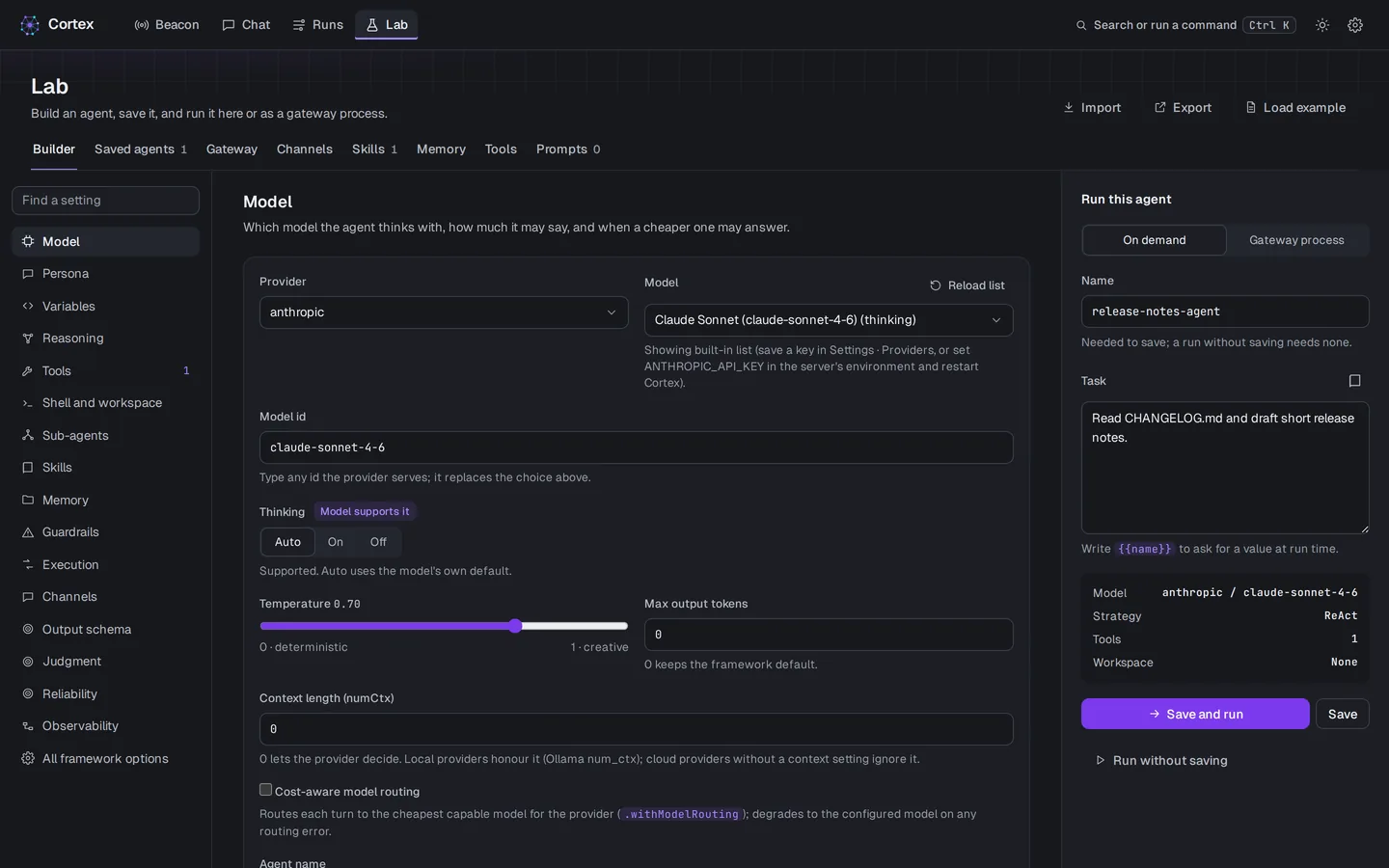
The Lab (/lab) is the workshop for configuring and launching agents directly from the Cortex UI without writing code. Its header has Import (load an agent config JSON into the Builder), Export (the Builder’s agent as TypeScript or JSON) and Load example.
The TypeScript export is the framework’s own agentConfigToSource over the same config Cortex builds the agent from, so it matches what Cortex runs: meta tools, skills, agent tools, the host shell and its options, budgets, durable runs and the rest are all in the code. A few things Cortex adds have no config form (a scripted test scenario, host tools such as the chat’s session control and Cortex’s trace folder); the export lists each one that is set under Not in this code, with the builder call to add yourself. Secrets never appear in the code: an API key saved in Settings is left out (the note names the environment variable to set), and MCP server env and headers values print as process.env references. Copy and Download give you the file. Saved agents export the same way.
| Tab (URL hash) | Purpose |
|---|---|
Builder (/lab) |
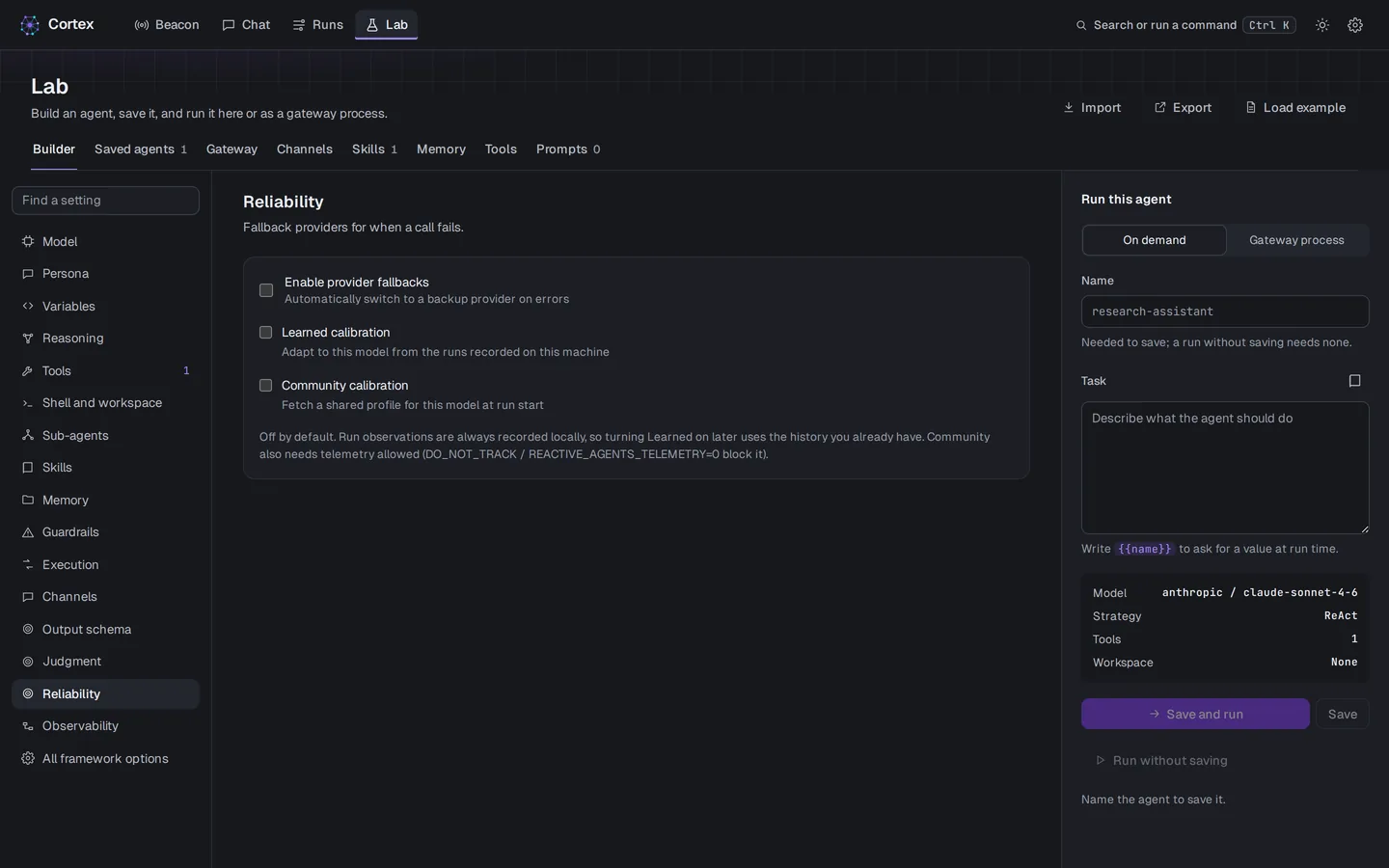
Three columns: a section nav with Find a setting (Model, Persona, Variables, Reasoning, Tools, Shell and workspace, Sub-agents, Skills, Memory, Guardrails, Execution, Channels (Telegram, Signal and webhook channels, access control, schedules and queue for a Gateway process agent; see Gateway and channels), Output schema, Reliability, Observability, All framework options; each setting has one home: approvals in Tools, dynamic sub-agents and nested spawning depth in Sub-agents, durable runs, token and cost caps, questions to you and webhooks in Execution, the typed result in Output schema, documents in Memory, model routing in Model), the chosen section’s settings, and Run this agent: On demand or Gateway process, a name, the task, a summary of what will run (model, strategy, tools, workspace), then Save and run, Save or Run without saving (a gateway agent: Create gateway agent). The Model section includes a Context length (numCtx) field to pin the exact provider context window (Ollama num_ctx); it also drives the context-usage gauge. Runs are immediately tracked in Beacon. |
Gateway (#status) |
Read-only overview of every saved Gateway process agent: live per-channel connection state, messages in, replies sent and send failures, schedules with next fire and recent runs, queue activity and recent activity. See Gateway and channels. |
Saved agents (#agents) |
Saved on-demand and gateway agents: status, schedule, runs and stats. Run starts one now; Pause / Activate a gateway agent; Use in Builder, edit, export, delete. The old #gateway link still opens this tab. |
Skills (#skills) |
Two views. Agent skills: the skills an agent learned or loaded, kept with its memory. Pick an agent to see each skill’s confidence (Tentative, Trusted, Expert), how often it was used, its success rate and when it was last used; its versions (current, on trial) with a line-by-line comparison to the version before; and a history of the skill events its runs reported (used, refined, rolled back, promoted), each linked to the run, plus the refinements and rollbacks you started in Cortex (marked “in Cortex”). Refine now runs one refinement pass on the agent’s last model and reports how many skills were refined, unchanged, skipped (too little new evidence) or failed; Lock keeps a skill as it is (refinement, promotion and automatic rollback skip it) and Unlock lets runs evolve it again, with its versions kept either way; Roll back restores the previous version (agent.rollbackSkill); Export to SKILL.md writes the skill into the Builder’s workspace under .agents/skills/<name>/. Skill files: the SKILL.md skills an agent built from the Builder can load: the framework’s own search at the Builder’s workspace (the server’s launch folder when none is set), with each folder it looks in and whether it exists. Below them, the Cortex library (skills saved in Cortex’s database) is deprecated: agents never see it, and Move into agent skills loads a row into the agent picked under Agent skills (you choose whether it evolves from runs, waits for review, or stays locked) and removes it from the library. When the agent already has a skill with that name, Update existing loads the row as that skill’s next version and keeps its history, so you can roll it back. Pin skills by name, add extra folders and turn on home-folder skills in the Builder’s Skills section. |
Memory (#memory) |
An agent’s stored memory, read and edited through the framework’s agent.memory(): pick an agent (any with a memory database under ~/.reactive-agents/memory), search facts (full text; words of 4 or more characters), browse Facts (semantic), Workflows (procedural) and Log (episodic). Each entry shows where it came from (the run that wrote it, with a link to that run) and its importance, tags and dates. Edit or delete facts and workflows (delete asks first). ?agent=<id>&run=<runId> opens it narrowed to what one run wrote. |
Tools (#tools) |
Three sub-tabs. Servers: your MCP servers, with their state, tools, options and credentials. Custom tools: the Lab’s own tools, created and edited here. Catalog and test: every tool an agent can get, with a panel to call it with custom parameters and inspect the result. |
Prompts (#prompts) |
Reusable system prompts, personas, tasks and snippets for the Builder, chat and Beacon. |
Verification, shell, workspace and schema
Section titled “Verification, shell, workspace and schema”Cortex’s Lab Builder tab tracks the framework, but two options deserve a clear split:
| Control | What it does |
|---|---|
| Verification step → Reflect | One extra LLM pass that reviews the draft answer (withVerificationStep({ mode: "reflect" })). Fast, no separate verification package. |
| Runtime verification layer | Enables @reactive-agents/verification (withVerification) — semantic entropy and related checks. Heavier than reflect; use when you want structured confidence signals. |
Allowed tools are chosen in the Lab Builder Tools section: quick toggles for common builtins, MCP tools from your saved servers, plus an Additional allowed tools field for exact IDs (Lab custom tools, less common builtins). Optional additionalToolNames is merged with the toggle list at run time.
Tools > Servers is a list of your saved servers with a state chip (Checking…, Connected, Failed, Disabled, Not checked), the tool count and when it was last checked. The three Tools tabs share one layout: a list column (search and the tab’s one action in its header, then a count) beside the detail pane, and the first item is shown when nothing is picked. When the tab opens, Cortex checks in the background every enabled server that was never checked or was last checked over 10 minutes ago: two at a time, each limited to 15 seconds (a slow first start can read Failed with “timed out”; Test allows much longer), and the result is saved so the next visit shows it without checking again. Recheck all (in the list header) checks every enabled server now; disabled servers are never started. A disabled server is also never offered to an agent: it is missing from the Builder and chat tool lists, the /mcp menu, the quick bar and the plan step tool dropdown, and shows only here and in Catalog and test (with a Disabled badge, still testable). A saved agent or chat that still lists one shows “Uses a disabled server (skipped)” with an Enable button, and its selected tools stay listed under Also selected so you can remove them. Add server opens a menu: Quick line (paste npx -y @scope/server or a URL), Form (command or URL, headers, environment, options) or Import JSON (an mcpServers block). Pick a server to see its detail:
- Test connects and shows the tool count or the reason it failed, right there. It does not change the saved tool list. Refresh tools lists the tools again and stores them. The Enabled switch turns the server off without removing it. Edit opens the form; Remove asks first.
- Tools tab: each cached tool, with its input schema on hover and a Read-only chip when the server’s read-only option covers it. The filter shows all tools, the read-only ones, or the rest.
- Options tab: Read-only tools and Trust the server’s read-only hints.
- Credentials tab: environment variables and headers as write-only rows. A stored key shows Set; type a new value to replace it, or remove the row to delete the key. Values are never shown again.
- A failed server shows its last error (credentials removed) with Retry and Edit config.
Tools > Custom tools lists the Lab’s own tools. New tool and Edit share one editor: a kebab-case name, a description and parameter rows, with a preview of the stored JSON. A custom tool can be switched off, deleted or tried in place. Tools > Catalog and test keeps the full catalog; a tool of a disabled server shows Disabled but can still be tested.
In the Builder’s Tools section (and the chat panel’s), saved servers appear as one attach list. Beside it, a strip says what the current selection allows: read-only MCP tools, tools that ask before running, and the shell. It links to Tools > Servers.
A saved MCP server keeps its last connection result (Connected, Failed with the reason, or Not checked), can be tested without changing its tool list (POST /api/mcp-servers/:id/test; the page’s background checks add ?timeoutMs=15000, and only one test of a server runs at a time), and can be switched off (PATCH /api/mcp-servers/:id/enabled): an agent that still lists a disabled server never starts it, on chat, desk runs, gateway agents and channel routes. Refresh tools also stores each tool’s input schema (GET /api/mcp-servers/:id/tools). A custom tool’s name, description and parameters can be edited in place (PATCH /api/tools/lab-custom/:id); renaming does not rewrite agents that list the old name.
Attaching an MCP server makes all of its tools available; click a tool chip to leave one out. The MCP server form and the server’s Options tab also have Read-only (off, all tools, or named tools) and Trust server annotations. Read-only marks tools as non-mutating so they stay available to read-only senders and to read-only satisfiability checks; trusting annotations honors the server’s own read-only hints. Both are your declaration as the operator: a server cannot make itself read-only unless you trust its annotations.
Host shell (shell-execute) is off by default. When you enable it in Tools, Cortex registers the framework terminal tool with the default allowlist/blocklist. The shell options below all map to one ShellExecuteConfig:
| Option | What it does |
|---|---|
| Allowed commands | The exact commands the agent may run, as removable chips, starting from the framework defaults. Add a command by name, or use a quick-add button (JavaScript, Python, Web, Archives, Environment) to add an opt-in group’s commands. Opt-in commands are marked with a risk note. Commands added to the defaults are saved as additionalCommands; removing a default saves the whole list as allowedCommands. Configs saved with the old command groups (commandAccess) load into the same list. |
| Runs on | This machine, or a Docker sandbox with no host files (sandbox). |
| Shell directory | Directory commands start in, relative to the workspace (cwd). |
| Timeout / Output cap | Per-command time limit and output size; 0 keeps the framework default (30 s, 4,000 chars). |
| Allow a shell directory outside the workspace | Lifts the workspace confinement for cwd (allowUnsafeCwd). |
Workspace (top of Tools) sets .withTools({ workspace }): file tools read and write inside that directory and the shell runs in it. Type a path or press Browse to pick one from suggestions or a folder browser (directory names only; hidden folders behind a toggle). Leave it empty and file tools use the server’s directory while the shell gets a fresh /tmp sandbox. A chat with tools turned off gets none of these: no shell, no workspace, no shell options, whatever its saved config holds.
Output schema (its own Lab section) is the typed object the agent returns (.withOutputSchema). Add fields with a name, type, description and required flag, or edit the JSON Schema directly (a schema with nested objects or other keywords opens as JSON only). The same field editor lists Variables. Once a schema is set, If the answer does not fit the schema picks what happens: keep the text answer and report the parse error (degrade, the framework default), or fail the run (throw). The schema is plain JSON Schema in the agent’s config, so it is in the exported code, and the framework refuses a schema it cannot validate when the agent is built.
A run or chat turn with a schema shows its Structured output as a table of fields (Raw JSON is one click away), and a How output was obtained panel from the framework’s report: whether the provider’s schema-constrained call answered or prompt mode did, any repairs applied to the model’s JSON, and the fields that failed as JSON Pointers. The panel opens by itself when no valid value was produced.
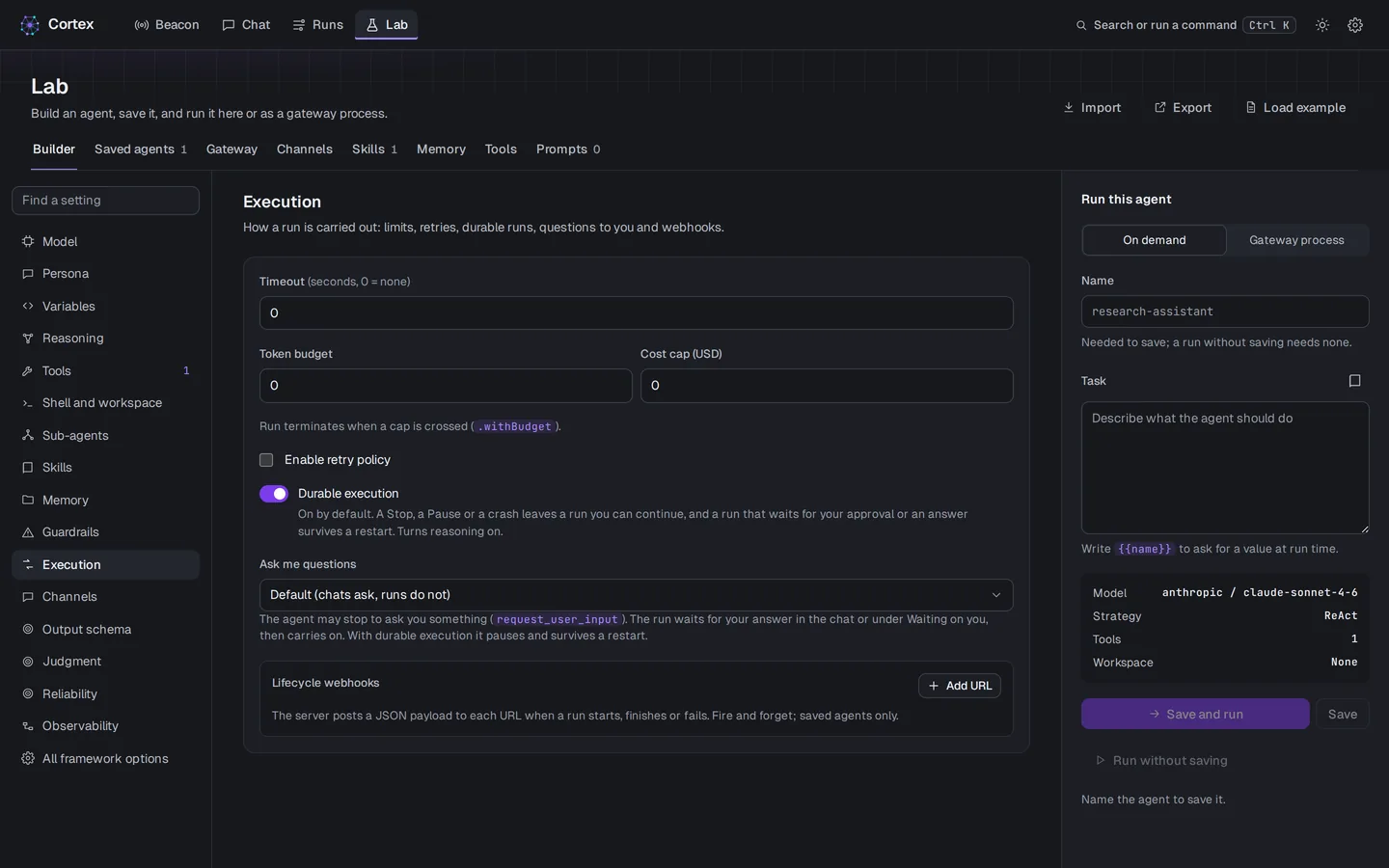
Ask me questions (in Execution) lets the agent stop and ask you something (request_user_input). Durable execution (the Execution switch, on by default; an explicit off is saved and kept) makes a Stop, a Pause or a crash leave a run you can continue, and makes the question pause the run so it survives a restart: a chat shows it in the thread with a reply box, a desk run’s question appears under Waiting on you and in the run header. With durable execution turned off the question is live instead: a chat shows it inline in the streaming turn and the same turn carries on with your answer. Default: chats ask, runs do not; set Yes or No to override. A chat with tools off has no tool layer, so it cannot ask.
Desk runs, chat sessions and saved gateway agents build their agents from the same config. A setting that works in one of them works in all three.
Guardrails has a master switch, one switch per framework detector (prompt injection, personal data, toxicity) and a Blocked phrases list (customBlocklist). The detectors are on/off; there is no sensitivity threshold.
Planning switches (in Reasoning, above the harness JSON) set four framework harness options without hand-editing JSON, each showing the framework default until you flip it: Plan recon (off) lets the agent call a few read-only tools while it plans and records what it learns as plan findings; Plan budget (off) raises the iteration limit of a run that starts from a plan to fit its steps; Wrap-up reserve (off) keeps the last iterations for writing the answer; Plan tool catalog (on) names the tools the execute step will have in Plan mode. Flipping a switch writes only that key into the harness JSON. Plan recon uses a tool only when it counts as read-only: a built-in read tool, or an MCP tool you marked Read-only or whose server annotations you chose to trust.
Advanced — framework config (in Reasoning) fields that are lists or maps (toolset names, focused tools, per-tool call caps, tool risk levels, required tools) use list editors: type a value and press Enter. The toolset-name suggestions for tools.builtins (read, research, file, …) come from the framework, and tools.disclosure sets how permitted tools are shown.
Web search providers (in Tools, in the builder and the chat config panel) pick which search backends the web-search tool tries and in what order: click Tavily, Brave Search, Serper, Keenable or DuckDuckGo in the order you want; the number on a chip is its place, and a provider you leave out is never tried. With none picked the framework’s default chain applies (every provider that has a key, then DuckDuckGo). It is saved as tools.webSearch.providers. The keys themselves come from Settings · Web search or the server’s environment.
Ask-me-questions and approvals are covered in Approvals and questions. Judgment is in Judgments and evals.
Install
Bun (recommended)bun add reactive-agentsNode 22.5+npm install reactive-agentsGet notified on new releases