

Voice
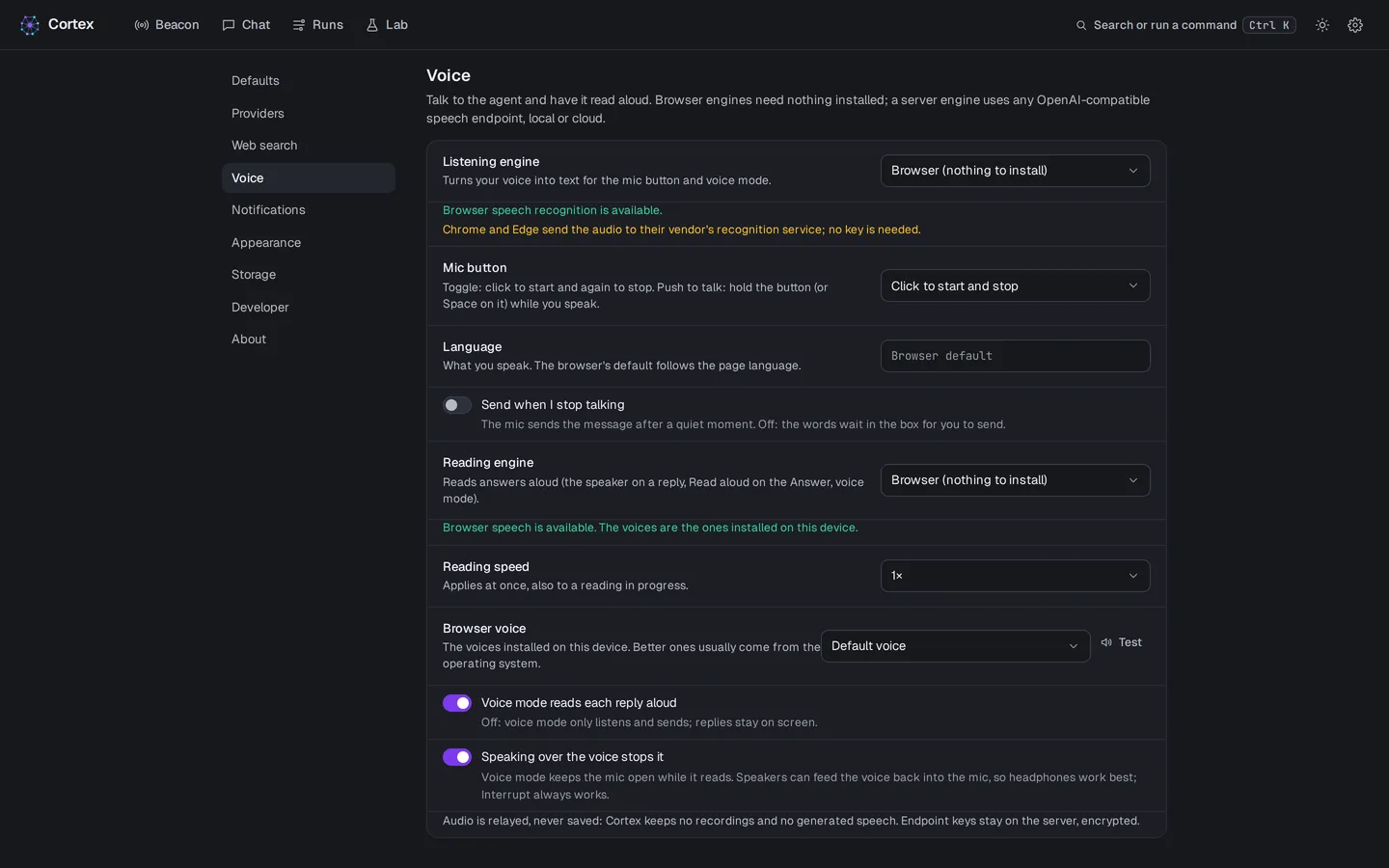
Voice is for the chat and the run view’s Answer. It has three parts, each usable on its own.
- Dictation (the mic button in the composer). Click it to start and click again to stop, or switch it to push to talk in Settings · Voice and hold it while you speak. The words appear at the cursor as you say them, in the middle of whatever you already typed, and never replace it. Esc stops. A language setting picks what you speak. With Send when I stop talking on, the message is sent after a quiet moment (800 ms to 3 s, your choice); off, the words wait in the box for you to send.
- Read aloud. Every agent reply has a speaker button; the run view’s Answer has Read aloud; the chat header has Read the conversation aloud. A bar above the composer shows play/pause, stop, previous and next sentence, speed (0.75× to 2×), the voice, and the sentence being read, which is also highlighted in the answer in browsers that support the CSS Custom Highlight API. Long text is read a sentence at a time. Code blocks and tables are announced (“Code block in typescript, 12 lines.”) and not read out; headings and lists get a pause; links read their label.
- Voice mode (the waveform button). A hands-free loop: it listens, sends your message when you stop talking, waits for the reply, reads it aloud, and listens again. The bar above the composer always says where it is (Listening, Thinking, Speaking, Waiting for your approval or answer, Paused), shows the words heard so far, and has an always-visible Stop voice mode (Esc does the same). Interrupt cuts the voice or the running reply and listens again. Speaking over the voice stops it (barge-in). The voice’s own sound can come back through speakers and the mic, so Cortex ignores heard words that are part of what it is saying; headphones work best, and you can switch barge-in off in Settings. The bar has a speed stepper (slower / faster, 0.75× to 2×): it is the same reading speed as Settings · Voice, so it starts from your saved default, a change is what the next sentence is read at, and it is kept. A browser voice always follows it; a server voice follows it when your speech server honours the
speedsetting (the bar says so when you use a server voice). Approvals from the agent appear as cards in the thread and wait for a click: voice mode never answers them for you. After a quiet minute of nothing heard, it ends itself. - Answering the agent’s questions by voice. When the agent asks a question while voice mode is on, Cortex reads it aloud (with numbered options for a choice) and listens for your answer, which is also shown in the bar with a field to type a correction. What you say is matched without any model: free text is kept as you said it; choices match the option’s name, a unique start of it, or “the second one”, “option B”, “number 3”, “last” (several at once for a pick-many question: “first and third”); yes/no accepts yes, yeah, sure, no, nope, don’t and similar; numbers accept digits or words (“forty two”, “three point five”). Cortex then reads back what it heard, and nothing is sent until you say “send it” (or “yes”, “confirm”) or press Send answer. Saying the confirm phrase with the answer (“option B, send it”) sends in one go; “no” or “change it” asks again; an unclear or ambiguous answer is asked again, never guessed. Free text is sent without the read-back only if you turned on Send when I stop talking. When the agent asks several questions at once, Cortex goes through the required ones one at a time (“Question 2 of 3”), each read back and confirmed like any other answer, and sends them together after the last one. Choices are matched by the name shown on the option. Optional questions and “something else” values are not asked by voice; use the form for those. If the agent rejects the set, Cortex says so and starts again from the first question. Approvals are never answered by voice: they always need a click.
Engines. Each direction has two:
| Browser (default) | Server (OpenAI-compatible) | |
|---|---|---|
| Listening | The browser’s speech recognition. Nothing to install. Chrome and Edge send the audio to their vendor’s recognition service; Firefox and Safari differ or lack it. | Cortex records in the browser and sends the audio to POST <url>/audio/transcriptions on a server you choose. |
| Reading | speechSynthesis: the voices installed on the device. |
Cortex sends each sentence to POST <url>/audio/speech and plays the audio. |
The server engines work with anything that copies the OpenAI audio API, so one setting covers local and cloud. Set the endpoint under Settings · Voice (pick a preset or enter a URL that ends in /v1), then press Save endpoint and Test. The Test button for reading also plays a short phrase so you hear the voice. Recommended local setups:
| For | Server | Endpoint | Model | Notes |
|---|---|---|---|---|
| Listening | Speaches (formerly faster-whisper-server) | http://localhost:8000/v1 |
Systran/faster-whisper-small (or larger) |
Runs on CPU or GPU; audio stays on your machine. Models are not preloaded: download one first (below). |
| Reading | Speaches (Kokoro) | http://localhost:8000/v1 |
speaches-ai/Kokoro-82M-v1.0-ONNX |
Voice af_heart; response_format wav or mp3 both work. Same container as listening. |
| Listening | whisper.cpp whisper-server |
http://localhost:8080/v1 |
the model it loaded | Start it with --inference-path /v1/audio/transcriptions. |
| Reading | Kokoro-FastAPI | http://localhost:8880/v1 |
kokoro |
Natural voices (af_bella, am_adam, …); List voices shows what it offers. |
| Reading | openedai-speech (Piper) | http://localhost:8000/v1 |
tts-1 |
Maps the OpenAI voice names to Piper voices. |
| Either | OpenAI | https://api.openai.com/v1 |
whisper-1 / tts-1 |
Needs an API key; your audio or text leaves the machine. |
Speaches setup
Section titled “Speaches setup”When the listening or reading endpoint points at a local Speaches server (a localhost or 127.0.0.1 URL ending in /v1, with a Hugging Face model id such as Systran/faster-whisper-small), Settings · Voice shows controls for that server. Cortex runs it in Docker on the machine where the Cortex server runs.
- Keep the local speech server running (off by default). On, Cortex checks the server at startup, when voice is used, and every minute, and starts its Docker container when it is down, creating it and downloading the configured models if needed. Switching it off stops the container (kept for a fast restart).
- Start server, Stop server and Retry work by hand with keep-running off. Stop also switches keep-running off, so Cortex does not start the server again. After three failed attempts the status shows the error and waits for Retry.
- Port (default 8000) and Hardware: Auto (the GPU image when Docker has an NVIDIA runtime, else CPU), CPU, or GPU (NVIDIA), which needs the NVIDIA Container Toolkit. Apply saves them. A port change moves the listening and reading endpoints to
http://127.0.0.1:<port>/v1. A running server is re-created on the new port or hardware; downloaded models are kept. - Models. The listening (Whisper) and reading (TTS) model fields list the models the server has installed and the ones it can download. Picking one that is not installed downloads it when you save. Other model id… takes any id as free text.
Cortex manages only its own container, cortex-speaches, published on 127.0.0.1 only. A Speaches container you made yourself is never started, stopped or removed. When Cortex is reachable from other machines without an access token, these controls are refused.
To run Speaches by hand instead, start the container (ghcr.io/speaches-ai/speaches:latest-cuda, or the CPU image latest-cpu) on port 8000, then download the models you use; Speaches does not preload any, and an undownloaded model answers 404 “Model … is not installed locally”:
curl -X POST http://127.0.0.1:8000/v1/models/Systran/faster-whisper-smallcurl -X POST http://127.0.0.1:8000/v1/models/speaches-ai/Kokoro-82M-v1.0-ONNXcurl http://127.0.0.1:8000/v1/models # lists what is installedIf Test hits that 404, Settings · Voice shows the download hint and a copyable curl command for the model you set.
An API key, when the endpoint needs one, is saved through the same encrypted store as the provider keys (.cortex/, files only your user can read) and used only by the Cortex server; the browser never receives it, and the settings page shows •••• plus the last four characters. A key in the server’s environment works too (CORTEX_VOICE_STT_API_KEY, CORTEX_VOICE_TTS_API_KEY). The status lines under each engine say what is available and, for a cloud endpoint, that audio or text is sent there. Cortex relays audio and never stores it: no recordings, no generated speech on disk. A recording is limited to 25 MB and one speech request to 4096 characters (longer text is split into sentences). Closing the page or pressing Stop cancels the call to the audio server.
Language, speed, the browser voice and the mic mode are kept by the browser; the engines, endpoints, models and server voice are kept on the Cortex server. Microphone access needs a secure page: open Cortex on localhost or over https.
Step-by-step local setups, including the Speaches container, are in Local setup recipes.
Troubleshooting
Section titled “Troubleshooting”Reading starts and stops at once, or you see “Something outside Cortex paused the audio”. Cortex retries once, then stops the reading and tells you instead of looking like it is playing. Something outside the page is pausing its audio: usually a browser extension that manages media (a media-key or “pause other tabs” tool) or a desktop media controller. Open Cortex in an Incognito or private window to check; if it works there, disable the extension for Cortex’s address. Or set Reading engine to Browser speech, which does not use an audio element. Audio diagnostic, next to Test under Reading engine, plays a short tone through the same path and reports whether it played, was paused by something outside Cortex, or was blocked by the browser (which only plays sound after you interact with the page).
Install
Bun (recommended)bun add reactive-agentsNode 22.5+npm install reactive-agentsGet notified on new releases